7 Reasons to Try SightReadQuest in Your Music Classroom
Short sight-reading rounds for choir, band and orchestra. Choose the level, let students sing or play, and review their scores and recordings in one place.
10-day trial · No card · 100 trial student accounts
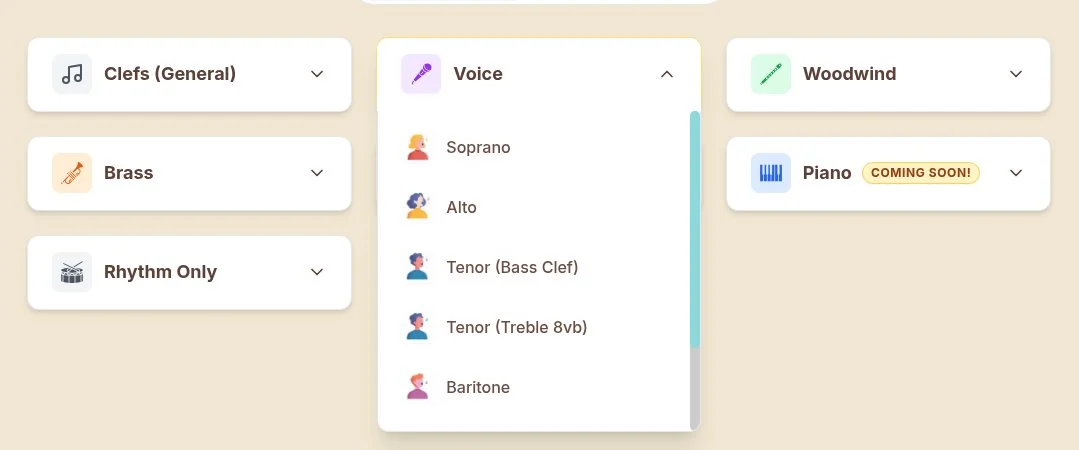
Start with the student in front of you: Choose a part and a level before you build the round. SightReadQuest supports singers and instrumentalists, so your reading work can fit the ensemble you actually teach. The voice-part menu below is one example of those setup choices.
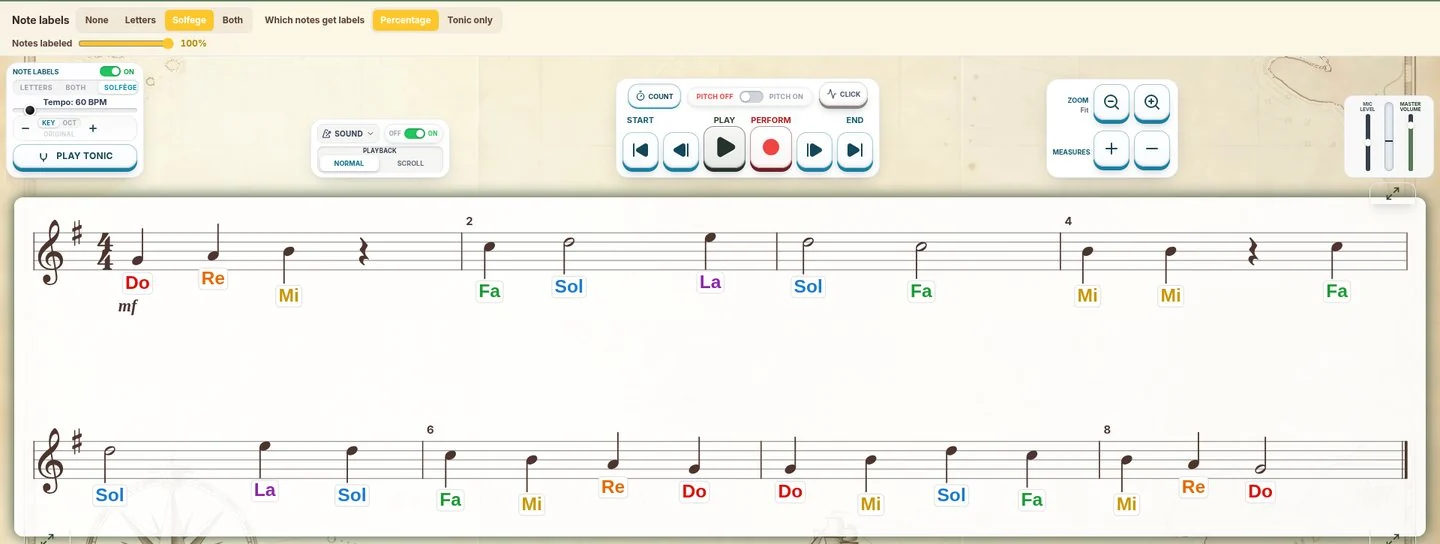
Use labels when students need them: Solfege or letter labels can give a beginning reader a place to start. Change the labels as you change the task. You can teach the reading step you need without making a separate worksheet for it.
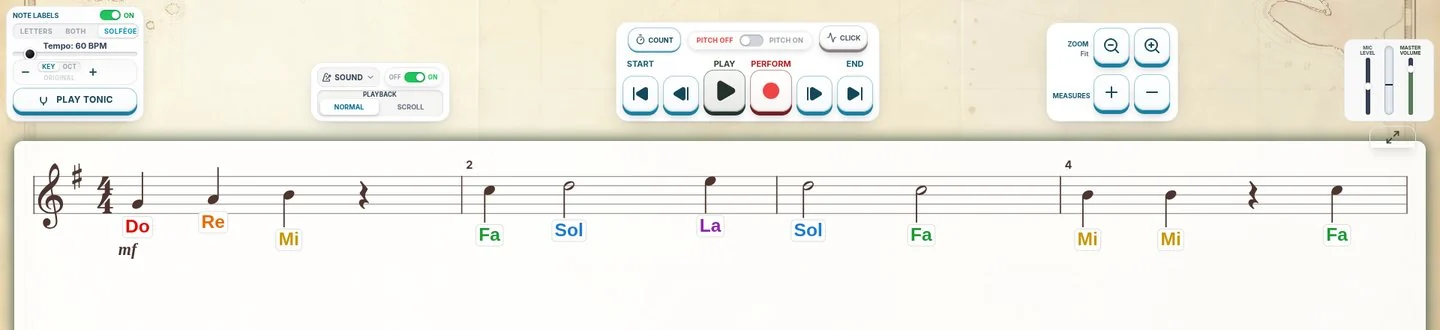
Put the tonic and pulse beside the music: Play Tonic, tempo and Count/Click controls sit next to the staff. Establish the starting sound and beat, then let students work through the line. The setup stays with the exercise.
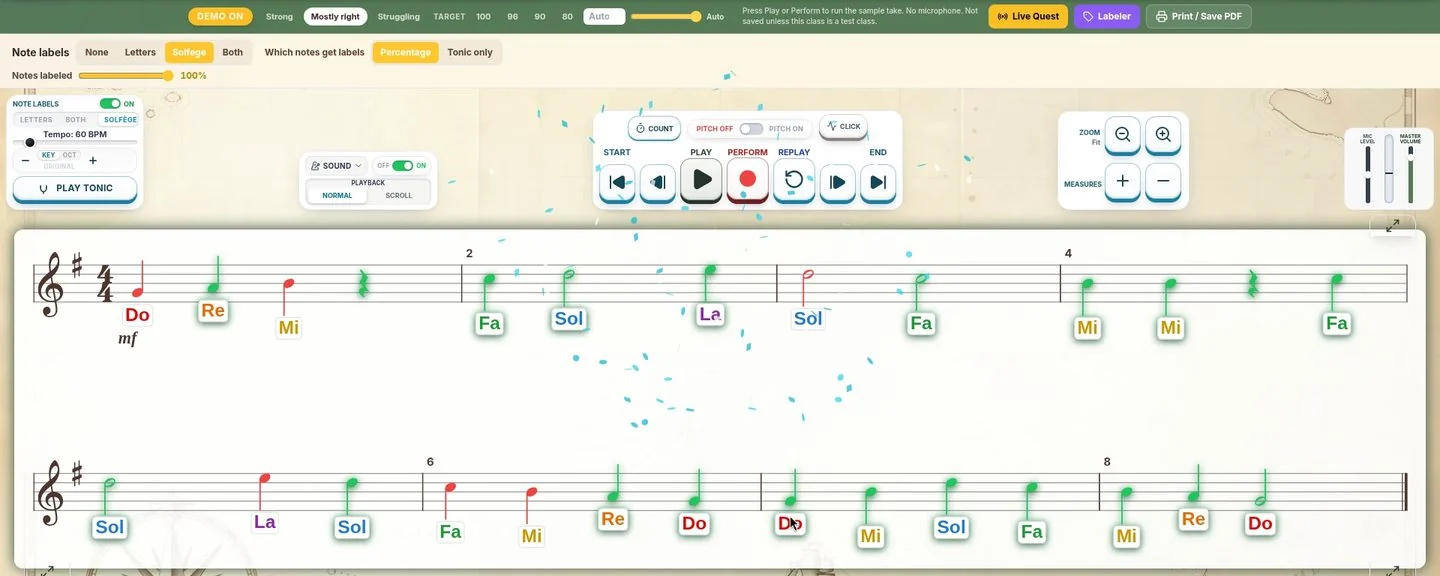
See pitch and rhythm as students perform: Students sing or play into the microphone and get feedback on the staff. Scores and recordings give you something to review after the round. The example below is the built-in demo, not evidence of a student result.
Ask for more than a second reading: Flash Mode gives students a short look at the notes before they perform from memory. Memory Mode offers another way to study, hide and recall a phrase. Use a short task to change what students must notice.
Connect hearing with notation: Echo Notate asks students to hear a phrase and write it back. Audiate Attack gives you another listening and recall task. These modes let a short reading routine include ear training, not just looking at notes.
Keep the round connected to your class: Create the exercise, choose the class and set the assignment. Students join with a class code and do not need an email address. Scores and recordings stay connected to the work in your teacher dashboard.
For choir, band and orchestra teachers
Short sight-reading rounds for choir, band and orchestra. Choose the level, let students sing or play, and review their scores and recordings in one place.
10-day trial · No card · 100 trial student accounts
Singers and players
Live mic feedback
Class codes, no student emails
A reading task with a clear purpose.
One short round can check a specific reading skill. These are seven ways to build that round around your students, rather than ask every student to start in the same place.
REASON 01 Start with the student in front of you
Choose a part and a level before you build the round. SightReadQuest supports singers and instrumentalists, so your reading work can fit the ensemble you actually teach. The voice-part menu below is one example of those setup choices.
Real voice-part menu. Soprano teacher example, captured November 6, 2026. This is not an instrument-parts screenshot.
REASON 02 Use labels when students need them
Solfege or letter labels can give a beginning reader a place to start. Change the labels as you change the task. You can teach the reading step you need without making a separate worksheet for it.
Real generated Soprano Level 2 exercise with solfege labels on.
REASON 03 Put the tonic and pulse beside the music
Play Tonic, tempo and Count/Click controls sit next to the staff. Establish the starting sound and beat, then let students work through the line. The setup stays with the exercise.
Real teacher controls: Play Tonic, tempo and Count/Click above the staff.
REASON 04 See pitch and rhythm as students perform
Students sing or play into the microphone and get feedback on the staff. Scores and recordings give you something to review after the round. The example below is the built-in demo, not evidence of a student result.
Choir example: Soprano exercise with a built-in demo performance, not a student take or microphone recording. Colored notes illustrate the feedback display.
REASON 05 Ask for more than a second reading
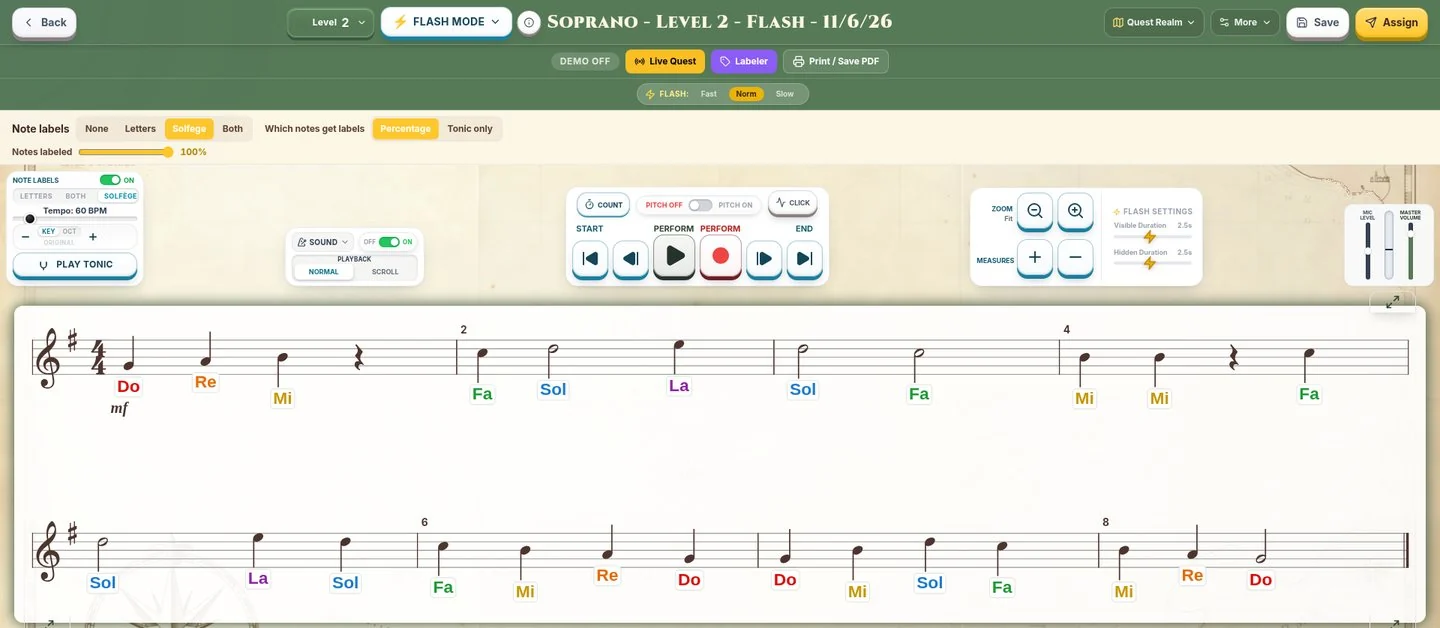
Flash Mode gives students a short look at the notes before they perform from memory. Memory Mode offers another way to study, hide and recall a phrase. Use a short task to change what students must notice.
Choir example: real Flash Mode controls in the Soprano teacher edit view. The staff is still visible here.
REASON 06 Connect hearing with notation
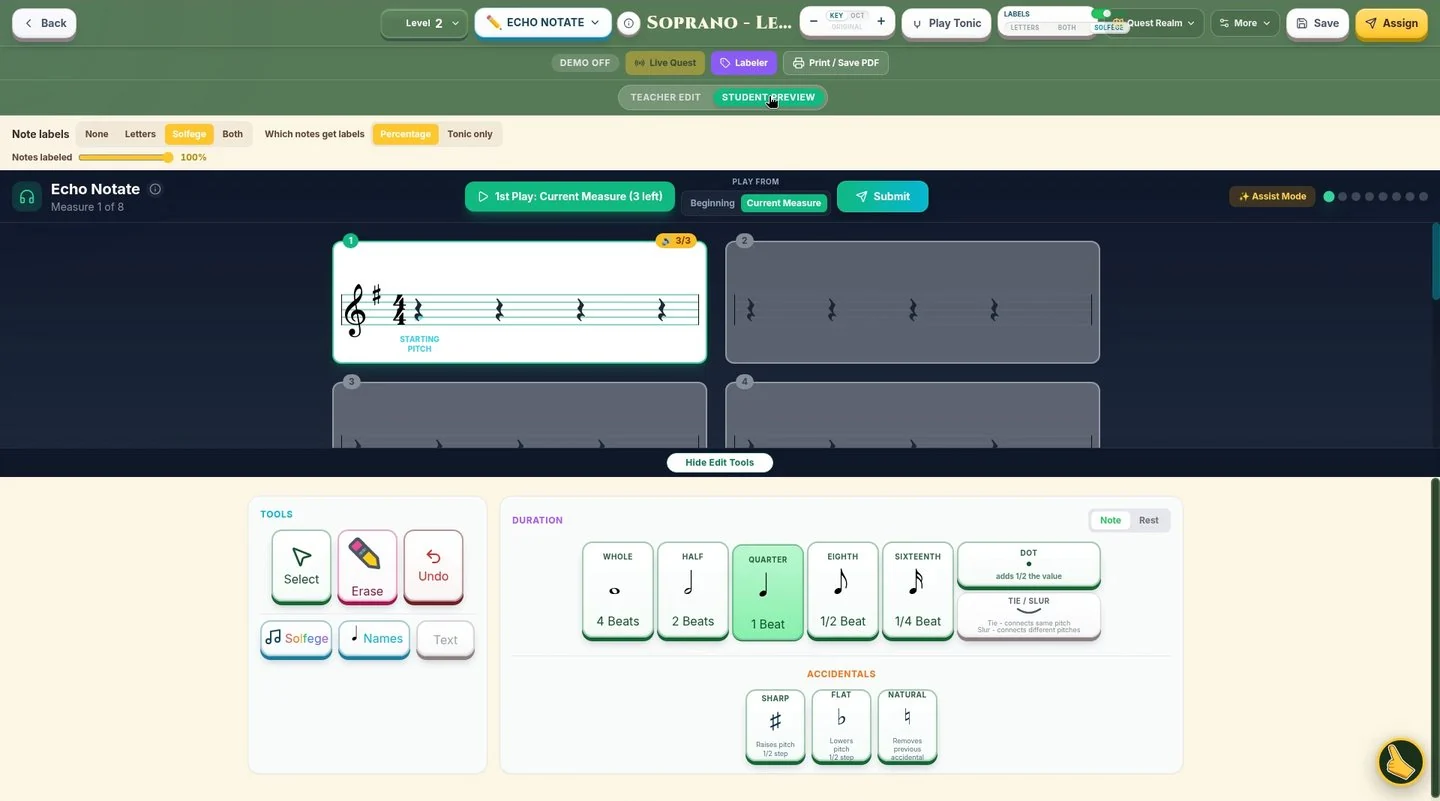
Echo Notate asks students to hear a phrase and write it back. Audiate Attack gives you another listening and recall task. These modes let a short reading routine include ear training, not just looking at notes.
Choir sample: real Echo Notate student preview. Hear a measure, then write it on the staff.
REASON 07 Keep the round connected to your class
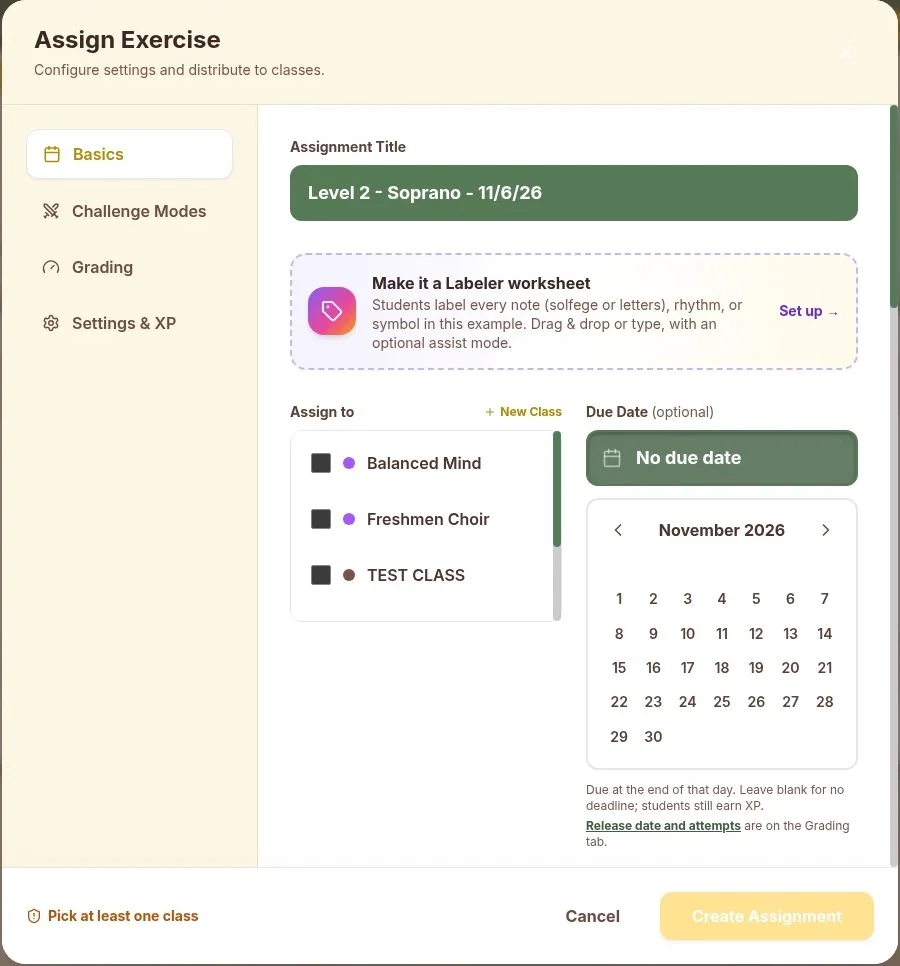
Create the exercise, choose the class and set the assignment. Students join with a class code and do not need an email address. Scores and recordings stay connected to the work in your teacher dashboard.
Choir example: real Assign Exercise dialog for a Soprano exercise. It was cancelled; nothing was assigned. Class names are teacher-created examples, not student names.
Pick the Teacher License. Add seats when you need them.
A Teacher License is your account. Student Accounts are separate annual packs. No student seats are included in a paid Teacher License.
Monthly and Yearly Teacher Licenses and card-purchased student packs renew until cancelled. For multiple teachers, more than 300 students or a school purchase order, request an emailed quote from the pricing page.
Standard prices checked November 7, 2026 (ET). No promotional code or discount is assumed.
Monthly Teacher License: $15/month. Billed monthly. Student Accounts sold separately.
Yearly Teacher License: $99/year. Billed yearly. Student Accounts sold separately.
50 Student Accounts: $199/year
100 Student Accounts: $299/year
150 Student Accounts: $399/year
200 Student Accounts: $499/year
300 Student Accounts: $699/year
Questions before you start
Does my Teacher License include students? No. Paid Teacher Licenses cover the teacher tools. Student Accounts are separate annual packs. The free 10-day trial includes 100 student accounts.
Do students need an email address? No. Students join with a class code and do not need a student email address.
Can I try it before buying? Yes. The free trial lasts 10 days, includes a teacher account and 100 student accounts, and does not require a credit card.
Can students sing or play? Yes. SightReadQuest supports choir, band and orchestra parts. Choose the part and level for the reading task. Test your school microphone and device setup during the trial.
What happens when I cancel? Monthly and Yearly Teacher Licenses and student packs renew until cancelled. Cancel in Account Settings or email support. Cancellation stops future renewals and takes effect at the end of the current billing period.
Can my school pay with a purchase order? Yes. Use the school quote option on the pricing page. Quotes and purchase-order help are handled by email.
Try one short round with your students.
Choose a part and level, check your school setup, then decide if it fits your classroom.